
Get to the real site in one click
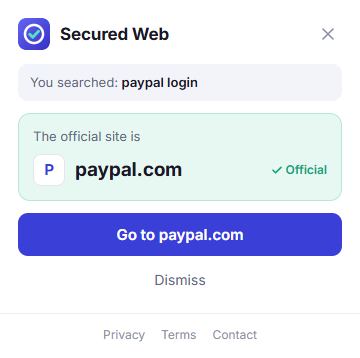
Search for a brand the way you always do. Secured Web shows its official site on the toolbar icon, and takes you there when you click Go.

Three moments, one click
Nothing to set up. It works from the address bar you already use.
-
1
Search as usual
Type a brand or service in the address bar, like “netflix” or “paypal login”.
-
2
Look for the check
A green check on the icon means we found the brand’s official site. Your results load as usual.
-
3
Click Go
Open the popup and click Go. The official site opens in the same tab.

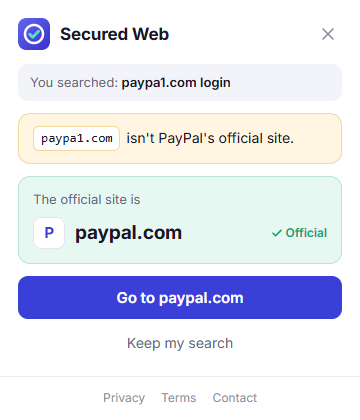
An amber ! points you to the original
Some searches include a web address that borrows a brand’s name, like paypa1.com or paypal-login.com.
When that happens, the icon shows an amber ! and the popup names the brand’s official site, one click away.
You can keep your search too: the results load exactly as they would without Secured Web.
Everything else stays the same
Secured Web only adds a small badge to its own icon. The rest of your browsing is untouched.
-
Your results load as usualNo redirects and nothing added to the results page.
-
The popup opens only when you clickIt never pops up on its own.
-
The badge belongs to one tabIt goes away when you search for something else or leave the results.
-
No account, no settingsThe brand list is built in, so it works right after you add it.
Questions
Which brands does Secured Web know?
It comes with a list of popular brands and services and their official sites, such as PayPal, Netflix, Amazon, Microsoft, Facebook, LinkedIn, FedEx and the IRS.
Why is there no check when I search “apple pie”?
Some brand names are everyday words. For those brands, add a word like login, account or app, for example “apple id login” or “amazon account”.
Does it change my search results?
No. Your results load as usual and nothing is added to the page. The only thing you see is the badge on the toolbar icon.
When does the badge go away?
When you search for something that isn’t on the list, leave the results page, or close the tab.
How do I remove Secured Web?
Right-click the icon and choose “Uninstall from Chrome”, or follow the steps on our uninstall page.